Users & Roles
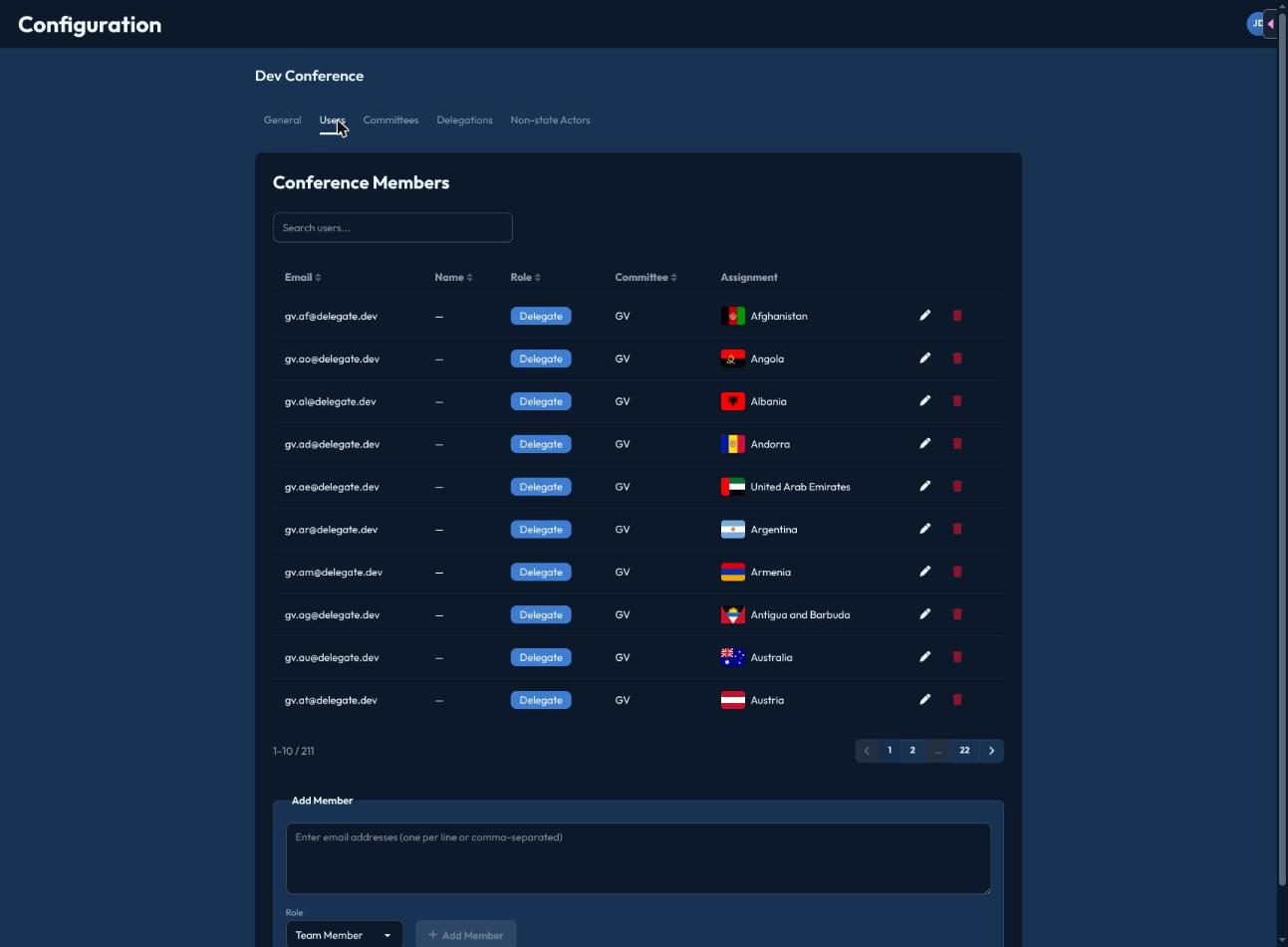
The Users tab lists everyone with access to the conference: email, name, role, committee, and — for Delegates/NSAs — which delegation they're assigned to.
Available roles
| Role | What it grants |
|---|---|
| Admin | Full Mission Control access, conference-wide. |
| Team Member | Chair access to whichever committee(s) they're assigned. |
| Delegate | Represents a specific delegation in one committee. |
| Non-State Actor | Represents an NSA/UN actor, conference-wide. |
| Spectator | Read-only committee access, no delegation. |
A person can only hold one role per conference user entry, but nothing stops the same email from being both a Team Member in one committee and a Delegate in another via separate entries — check with your Secretariat on how your conference wants overlapping roles handled.
Inviting people
Paste one or more email addresses (newline, comma, or semicolon separated) into the bulk-invite box, choose the Role to assign all of them, and click Add Member. Each valid email becomes a conference user with that role — invalid addresses are silently skipped, so double-check the list if fewer people show up than expected.
Assigning a delegation or committee
Click the pencil icon on any user (you can't edit your own entry) to open their edit dialog, where you can change their role and — for Delegates and NSAs — link them to a specific delegation/committee seat. Unassigned Delegates/NSAs show as "Unassigned" in the table until you do this.
Removing someone
The trash icon removes a user's access entirely (also disabled for your own entry) — you'll be asked to confirm first.