Getting Started as an Admin
Two levels of "admin"
CHASE distinguishes between:
- Conference Admin — the
Adminrole assigned to a specific conference (via Users & Roles). Gives full configuration access to that one conference's Mission Control. - Global Admin — a platform-level admin, set up by whoever runs your CHASE instance. Global admins can additionally create brand-new conferences (via import or from scratch) and configure any conference, not just ones they've been explicitly added to.
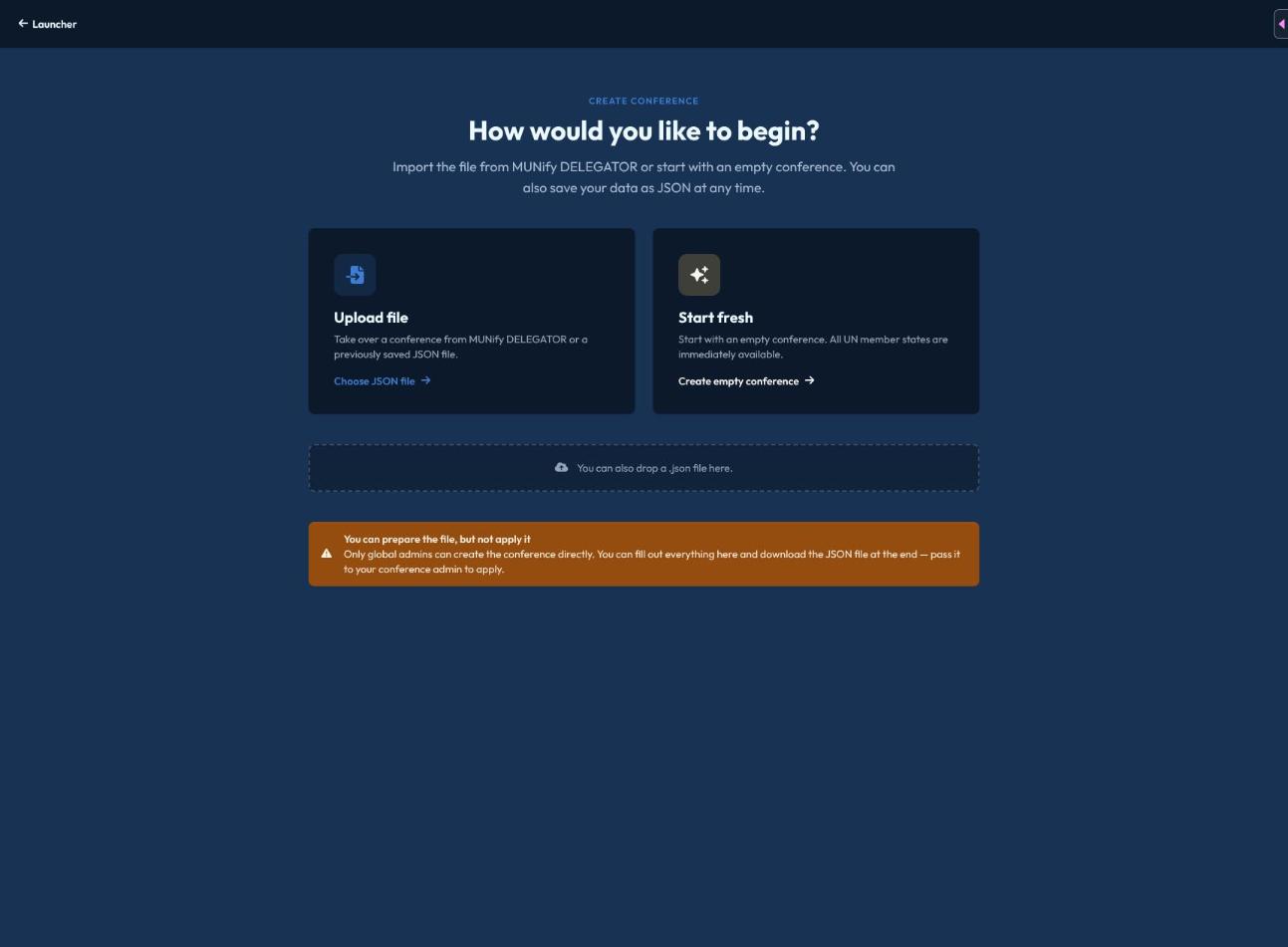
If you can't find a "create conference" option, you likely have Conference Admin rights on an existing conference but aren't a Global Admin — ask whoever manages your instance to create the conference, or grant you Global Admin.
Getting into Mission Control
From the conference launcher, an admin conference row shows a gear icon — click it (or open the conference and use the menu) to reach Mission Control, then Configuration, which is organized into tabs:
- General — conference-level settings (see Conference Setup)
- Users — inviting people and assigning roles (see Users & Roles)
- Committees — creating committees (see Committees & Delegations)
- Delegations — adding countries/delegations
- Non-State Actors — configuring NSAs and UN actors (see NSA Management)
Creating a conference
New conferences are created through the same Import flow used for pulling data from MUNify DELEGATOR — see Importing from DELEGATOR. You can either import an actual DELEGATOR export, or start from a blank template and fill everything in by hand; both go through the same step-by-step wizard.