Whiteboard
Every committee has a shared whiteboard you can use to put something in front of the whole room — a diagram, an uploaded image, or a scannable link.
Editing
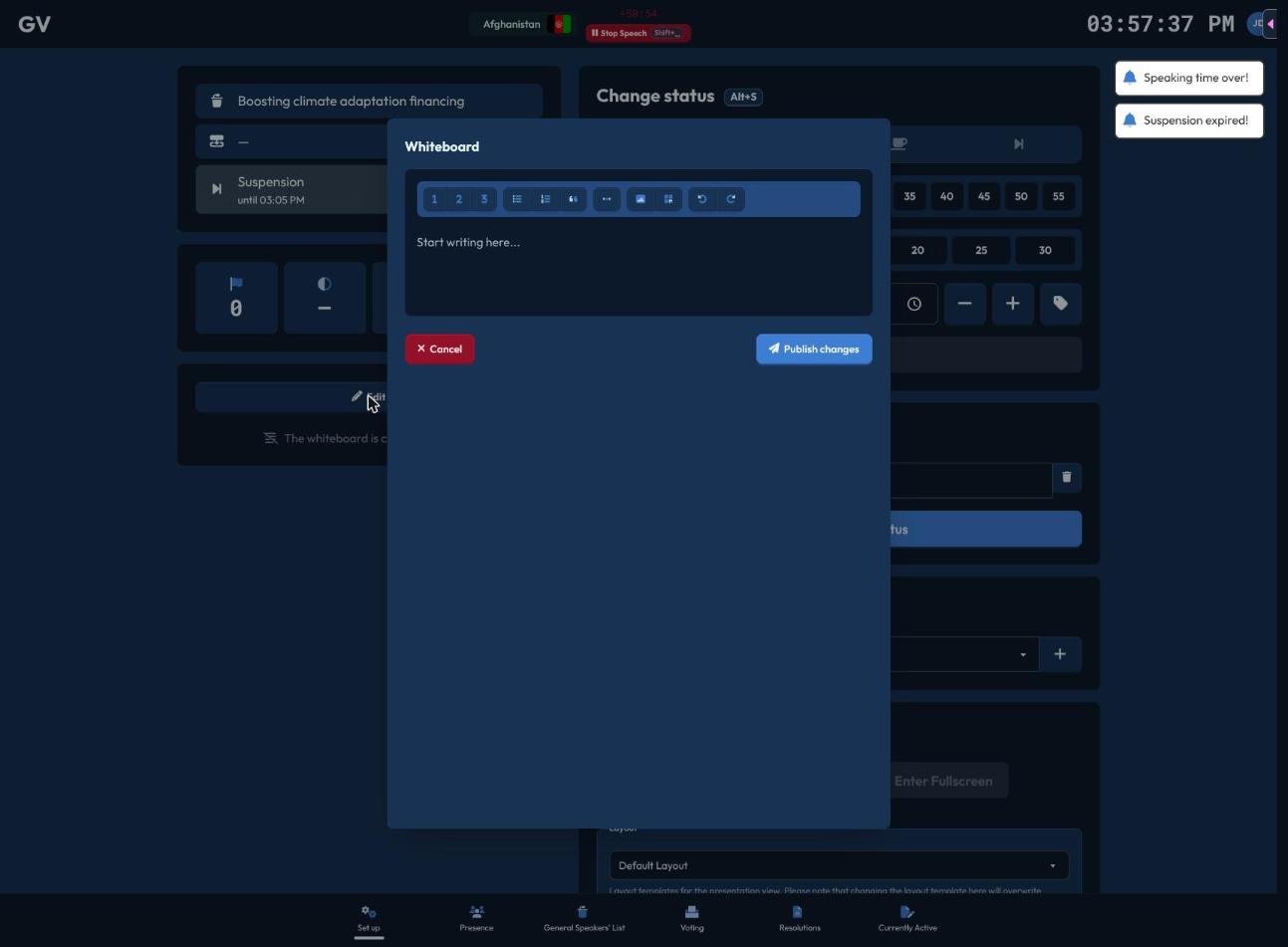
From the Setup page, click Edit on the Whiteboard card to open the editor — a rich text/drawing surface with a formatting toolbar (headings, lists, etc.) and a floating menu for quick formatting when you select text.
Two special tools:
- Upload Image — insert an image file directly into the board.
- Generate QR Code — insert a scannable QR code. Choose Committee to auto-link to your committee's participant view (optionally including the papers view), or Custom to link anywhere else.
When you're done, click Publish Changes to push it live — or Abort to discard your edits.
Visibility
The whiteboard automatically appears on participants' dashboards and the presentation screen as soon as it has content — there's no separate show/hide switch; clear the content if you want it to disappear.