Getting Started as a Participant
This guide is for anyone taking part in a committee session as a Delegate, Spectator, or Non-State Actor (NSA) — collectively "participants." If you're chairing a committee, see the Chair Guide instead.
Logging in
CHASE is a web app — no installation required, though a native desktop app is also available on some platforms. To get started:
- Open the CHASE URL your conference organizers gave you (or the desktop app, if you were given an installer).
- Log in through your conference's identity provider. Your conference administrators control who's allowed to log in — if you can't get in, contact them, not CHASE support.
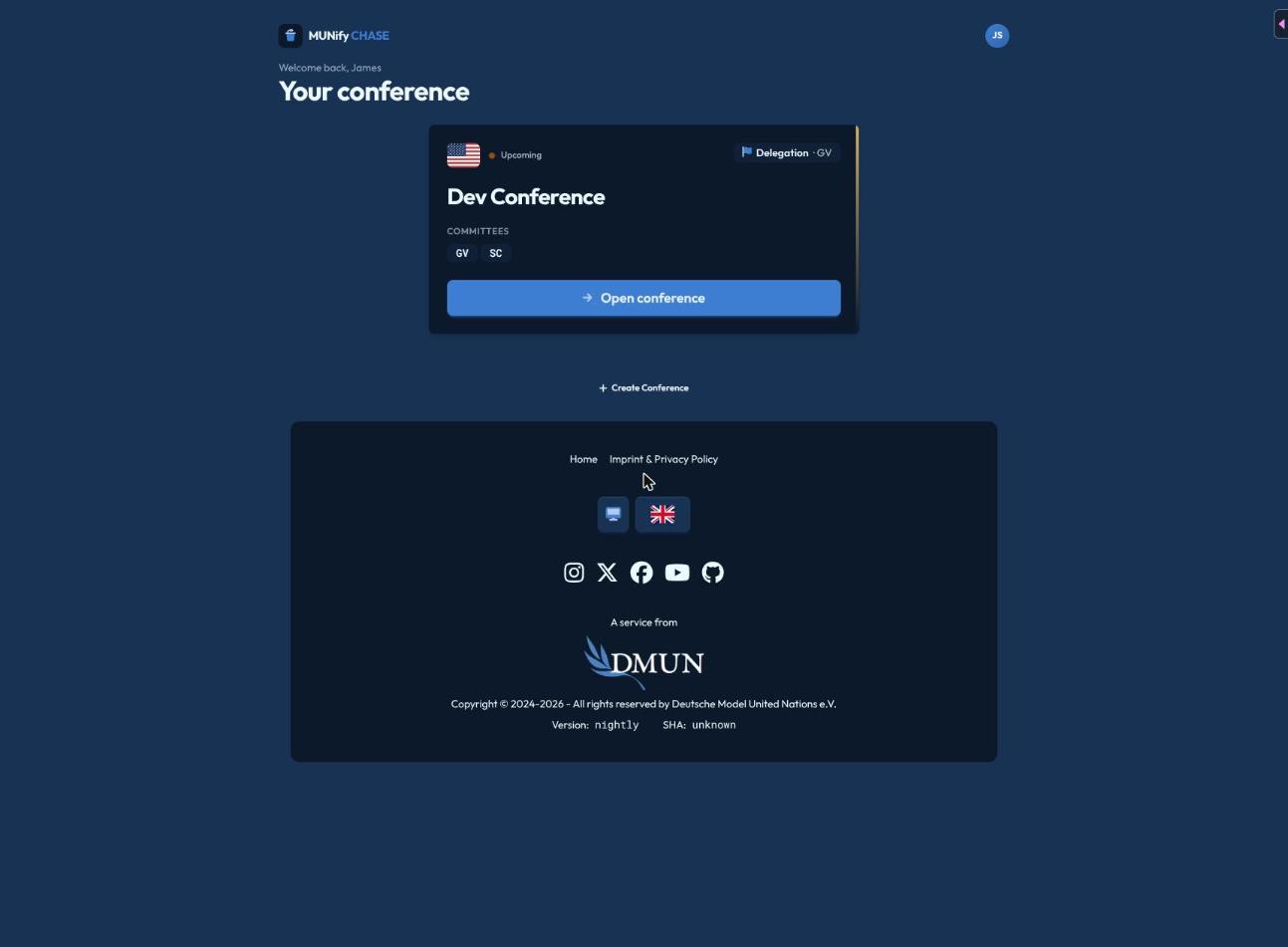
- You'll land on the Launcher — a list of every conference you're registered for, grouped into Active, Upcoming, and Past. If you attend only one conference, you'll be taken there directly.
If a conference you expect to see is missing, someone hasn't added you to it yet — reach out to your conference's leadership or admins.
Finding your committee
Opening a conference from the launcher takes you to the Committee Overview — a grid of every committee in that conference, showing each one's name, abbreviation, and current status (e.g. "Formal Debate", "Moderated Caucus", "Suspended"). Click a committee to open it.
Your role is set per conference (and can differ per committee) by the conference's administrators:
| Role | What you'll see |
|---|---|
| Delegate | Full participant view for the delegation you represent — speakers list, voting, resolutions. |
| Spectator | Read-only view of the committee (speakers list, current status) without the ability to speak, vote, or submit papers. |
| Non-State Actor (NSA) | Like a delegate, but representing an organization rather than a country; typically checked in via a printed QR badge rather than logging in. |
Your committee dashboard
Your dashboard shows:
- Identity card — your country/organization's flag and name, so it's always clear who you're representing.
- Committee status — the current agenda item and committee status (e.g. debate, caucus, suspended), with a countdown if the chair set a duration.
- Majorities — how many votes count as a simple majority, absolute majority, and two-thirds majority in the room right now, updated live as attendance changes.
- Speakers list (delegates and spectators) — see Speakers List & Speaking.
- Resolutions — a link into your committee's working papers, if the resolutions feature is enabled for this committee.
- Whiteboard — if the chair has shared something to the room's whiteboard, it appears here.
Everything on this dashboard updates live — you don't need to refresh the page as debate progresses.
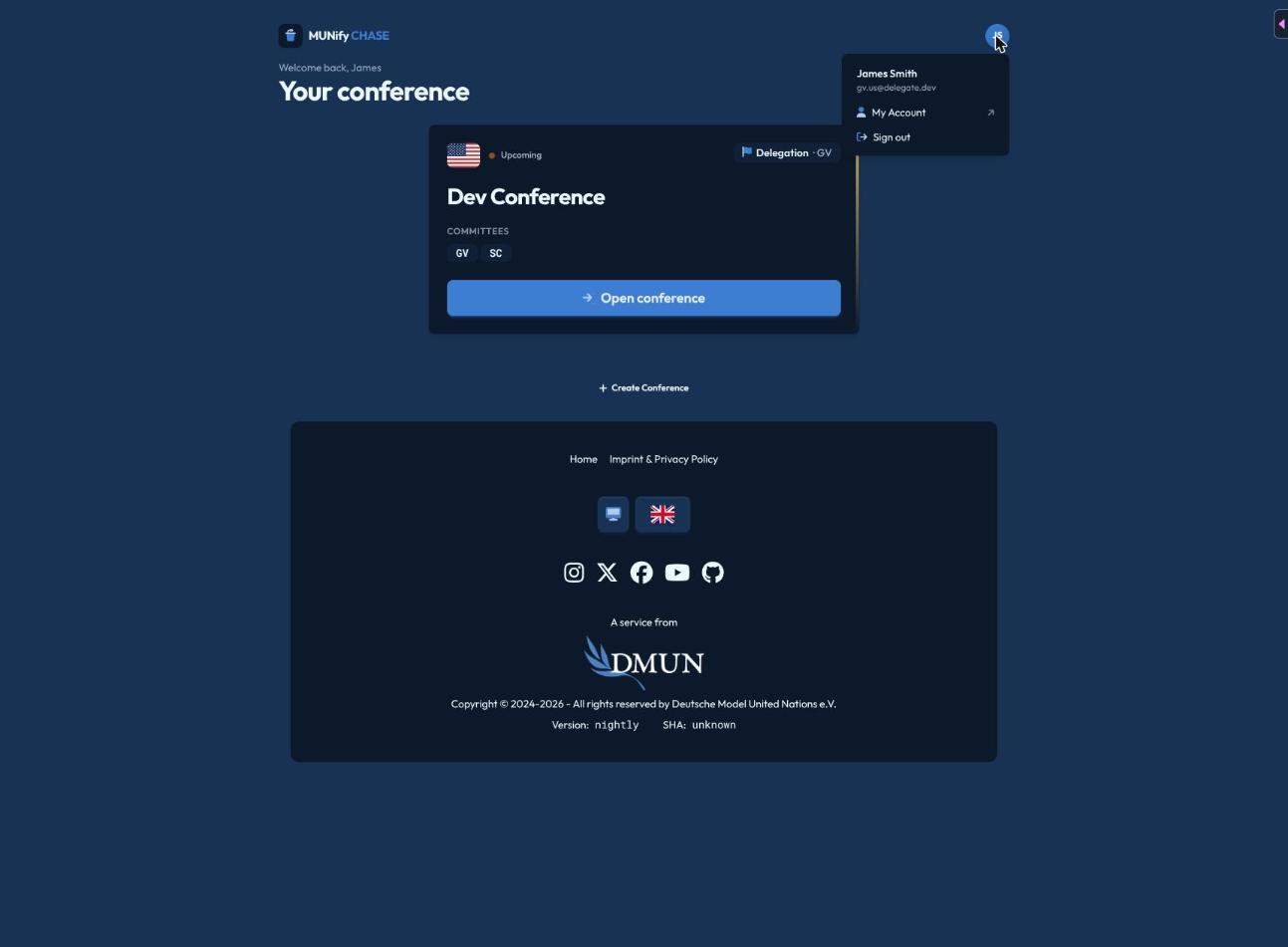
You can check who you're logged in as, and sign out, from the avatar menu:
Staying connected
CHASE works offline-first: if your connection drops momentarily, a banner will let you know, and the app keeps showing the last known state rather than freezing or erroring. Reconnect and it catches back up automatically.
Next steps
- Speakers List & Speaking — requesting the floor and following debate
- Voting — how the different vote types work from your side
- Attendance — how check-in works and viewing your own history